


How many usb ports does my motherboard have? If you are building a new PC, upgrading your gaming setup, or simply trying to figure out why you don’t have enough slots for your external hard drives, this is the most important question you can ask.
- The Quick Answer: Average Number of USB Ports on a PC
- How to Find Your Motherboard USB Capacity
- 1. Read the Schematic Board Diagram (The Most Accurate Method)
- 2. Physical Inspection & Color-Coding
- 3. Check Windows Device Manager
- Internal vs. External: The Anatomy of a Port
- Technical Deep Dive: Understanding Pinouts and Pitch
- USB Topology: The “127 Devices” Rule
- Not Enough USB Ports? How to Add More
- Final Thoughts
The number of connections your PC can handle dictates how many peripherals you can use, how fast your data transfers, and what kind of smart cooling components you can install inside your case. However, counting your ports is not as simple as looking at the back of your computer. You have to account for external rear I/O ports, internal usb headers, and the overarching limits of your motherboard’s chipset.
In this guide, we will show you exactly how to check your motherboard USB ports, explain the highly technical differences between internal pinouts, and show you how to expand your setup if you run out of room.
The Quick Answer: Average Number of USB Ports on a PC
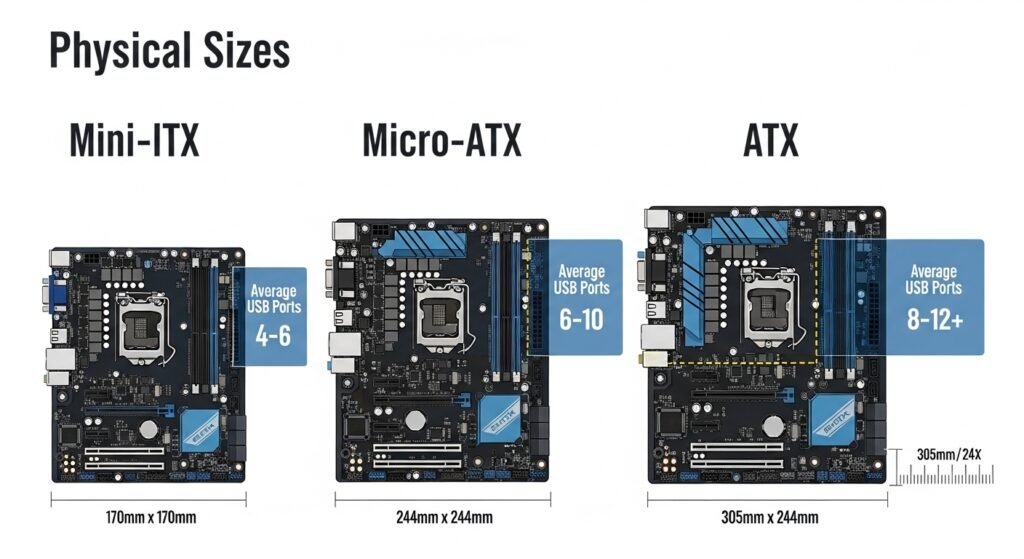
If you want to know the average number of usb ports on a pc, you must look at your motherboard’s form factor. Motherboards are divided into physical sizes, and the amount of PCB (printed circuit board) real estate directly dictates port capacity.
Here is what you can expect from standard consumer motherboards:
- Mini-ITX (Compact): 4 to 6 rear ports, 1 to 2 internal headers.
- Micro-ATX (Mid-range): 6 to 8 rear ports, 2 to 3 internal headers.
- Standard ATX (High-end): 8 to 12 rear ports, 3 to 5 internal headers.
- E-ATX (Enthusiast): 10 to 14+ rear ports, 4 to 6+ internal headers.
Note: If you are using an Industrial PC (IPC) or embedded motherboard rather than a consumer gaming board, your layout will differ. IPC boards often sacrifice high-speed USB-C ports in favor of numerous legacy USB 2.0 ports and COM serial ports for industrial machinery.
How to Find Your Motherboard USB Capacity
If you are asking, “how do I know how many usb ports my motherboard has?”, you need a concrete way to check. Here are the three most effective methods used by IT professionals.
1. Read the Schematic Board Diagram (The Most Accurate Method)
While checking the spec sheet is helpful, the most accurate method is to find your physical motherboard manual and locate the Schematic Board Diagram.
Unlike a simple list of specs, the schematic is a top-down blueprint of your exact motherboard. It will visually point out every single motherboard usb header, labeling them typically as F_USB1, JUSB2, or USB3_1. This prevents you from mistaking a USB header for an audio header, which look physically identical to the untrained eye.
2. Physical Inspection & Color-Coding
If you don’t have the manual, look directly at the motherboard rear I/O (the metallic panel on the back of your case where you plug in your mouse). Tech manufacturers use universal color-coding to identify port speeds:
- Black Ports: USB 2.0 (480 Mbps). Best for mice and keyboards.
- Blue Ports: USB 3.2 Gen 1 (5 Gbps). Best for flash drives.
- Red / Teal Ports: USB 3.2 Gen 2 (10 Gbps). Best for external SSDs.
3. Check Windows Device Manager
If you want to check your active USB controllers via software, you can use built-in Windows tools.
- Right-click the Start button and open Device Manager.
- Scroll to the bottom and expand Universal Serial Bus controllers.
- Here, you will see a list of your USB Root Hubs.
If you want to learn more about navigating Windows drivers to check your hardware, you can read the official Microsoft Support guide on Device Manager.
Internal vs. External: The Anatomy of a Port
When calculating capacity, beginners often confuse front panel usb ports vs back panel ports. To understand your motherboard’s true limits, you must understand the two physical types of connections.
The Rear I/O Panel (External)
These are the physical, ready-to-use slots on the back of your computer. They are soldered directly to the edge of the motherboard. You use these to plug in external peripherals like a mechanical keyboard, a webcam, or an audio interface.
Motherboard USB Headers (Internal)
So, what is a motherboard usb header? These are clusters of exposed metal pins located flat on the surface of the motherboard. You cannot plug external devices into these. Instead, they are used to route power and data to components inside your case.
Internal headers are responsible for powering:
- The USB slots on the top/front of your PC case.
- AIO liquid cooler LCD screens.
- RGB lighting controllers.
- Internal Bluetooth and Wi-Fi cards.
Technical Deep Dive: Understanding Pinouts and Pitch
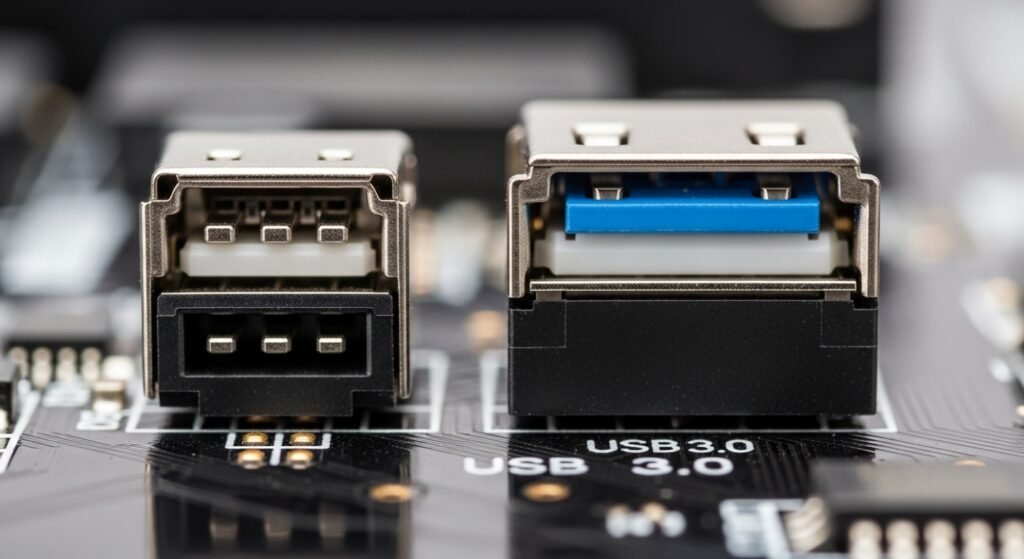
To truly master PC building, you need to understand how the internal USB pinout logic works. Motherboard manufacturers design these pins with strict electrical standards.
Standard internal headers (like the 9-pin USB 2.0 and 19-pin USB 3.0) are designed with a 2.54mm pitch. This means the distance between the center of each metal pin is exactly 2.54 millimeters.
Each pin within that header serves a dedicated purpose to form a complete circuit. A standard internal USB circuit consists of:
- VBUS (Power): Delivers the 5V electrical current to turn the device on.
- D- (Data Negative): Transmits digital data.
- D+ (Data Positive): Transmits digital data.
- GND (Ground): Completes the electrical circuit safely.
If you look closely at a 9-pin connector, you will notice the bottom right corner is missing a pin. This is called the “Key” pin. It ensures you cannot accidentally plug your cable in backward and fry your components with reversed voltage. To read the official specifications on pinout design, you can visit the USB Implementers Forum (USB-IF), the governing body of USB technology.
USB Topology: The “127 Devices” Rule
Here is a fascinating technical fact that most PC builders do not know. While your motherboard may only have 8 physical ports, the actual underlying USB controller chip is capable of handling much more.
According to standard USB Topology rules, a single USB host controller can theoretically support up to 127 daisy-chained devices.
This means that if you plug a hub into your motherboard, and plug another hub into that hub, the processor will still recognize all the devices (up to 127). The limitation is not the computer’s “brain”—the limitation is power delivery and physical bandwidth. While the motherboard can recognize 127 devices, there is not enough electrical voltage passing through a single port to power them all.
Not Enough USB Ports? How to Add More
Because modern PC setups require so many peripherals, finding out you have not enough usb ports is incredibly common. If you need to figure out how to connect more usb devices to motherboard, here are the safest and most effective solutions.
1. Internal 9-Pin Header Splitters
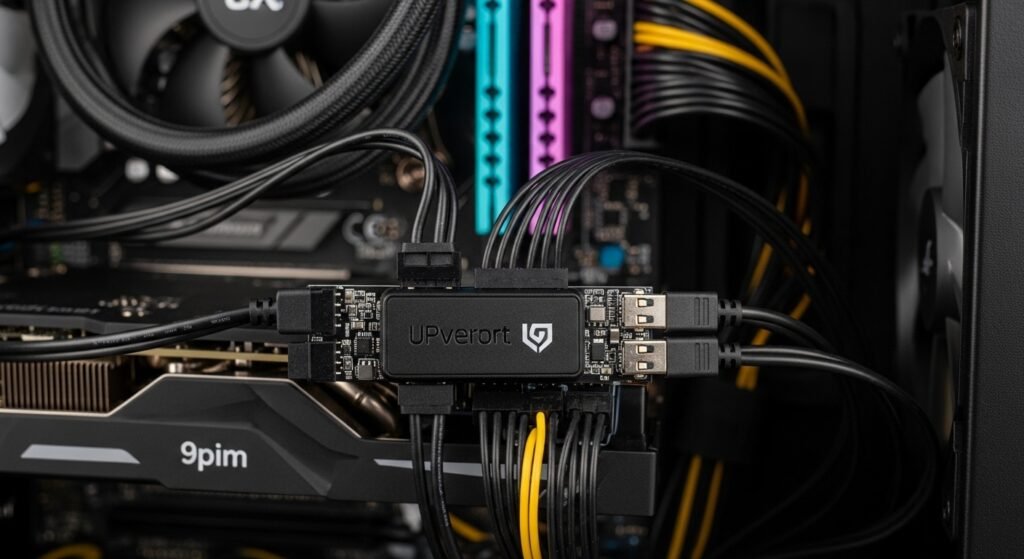
If you are a PC builder utilizing lots of smart fans and RGB hubs, you will run out of internal headers quickly. You can purchase an internal usb splitter, which plugs into a single 9-pin header on your motherboard and expands it into three or four separate headers. This relies entirely on the motherboard’s native power, so it is strictly for low-power internal data devices.
2. PCIe USB Expansion Cards
If you need more ports on the back of your PC, a PCIe expansion card is the best route. You plug this card directly into a spare PCI Express slot on your motherboard. Because it communicates directly with the motherboard’s high-speed PCIe lanes, it can add 2 to 6 high-speed ports without dropping data transfer speeds.
3. Powered External USB Hubs
If you want to add ports directly to your desk without opening your PC case, you need an external hub. However, you must buy a Powered USB Hub.
Standard unpowered hubs rely entirely on the 5V power coming from your motherboard. If you plug three external hard drives into an unpowered hub, the motherboard will crash the port to protect itself. A powered hub plugs directly into a wall outlet, providing dedicated electrical power to your devices while only sending data back to the motherboard.
To ensure you buy the right external gear, always check that your motherboard’s chipset (whether it is an Intel Z790 or AMD X670) supports the bandwidth required by premium Thunderbolt or USB-C docking stations.
Final Thoughts
Determining how many usb ports does a motherboard have comes down to understanding the difference between your rear external I/O panel and your internal pin headers.
By checking your motherboard’s schematic manual, identifying the physical color-coded ports, and utilizing smart expansion tools like PCIe cards or powered hubs, you will never have to worry about running out of connections for your setup again.
Go to Sac Biz News for more quality, informative content.