


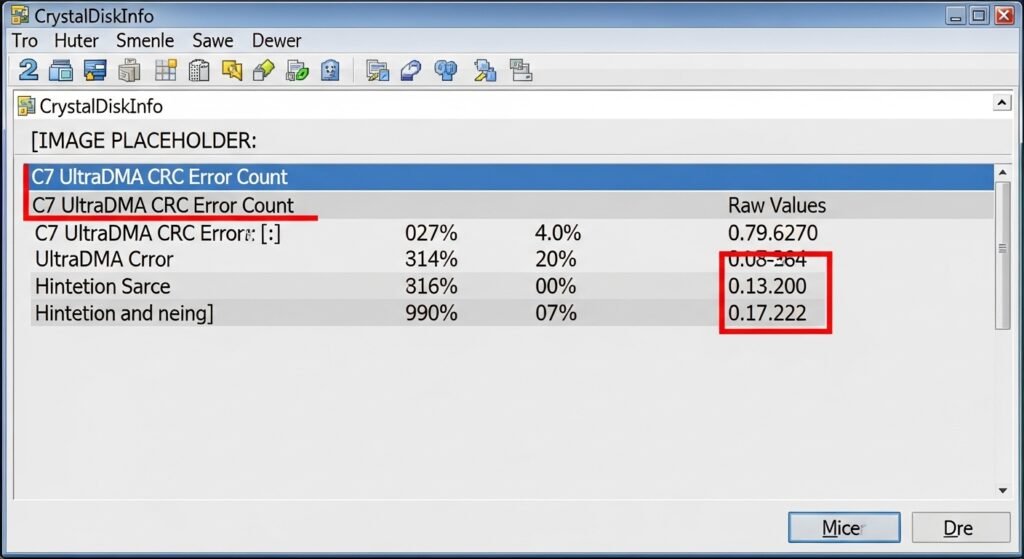
Seeing a udma crc error count warning pop up on your screen is enough to make any computer user panic. Whether you are checking your PC’s health or monitoring a home server, that yellow CrystalDiskInfo caution flag looks like an immediate death sentence for your hard drive.
- What is the UltraDMA CRC Error Count?
- 4 Hidden Causes of the 0xC7 SMART Error
- 1. Degraded or Bent SATA Data Cables
- 2. Cheap Power Splitters and Voltage Drops
- 3. Oxidized Motherboard SATA Ports
- 4. HBA Card or Backplane Failures
- Step-by-Step Fix: How to Stop the Error Count
- Step 1: Replace and Reroute Cables
- Step 2: Run CHKDSK to Fix Soft File Corruption (Windows)
- Step 3: Check Syslog for Hard Resets (Linux & Unraid Users)
- Step 4: Rebuild the Partition (MiniTool Method)
- The Ultimate Question: Does the UDMA CRC Error Count Go Down?
- Best Practices to Protect Your Data
Fortunately, you can stop worrying. In the vast majority of cases, your physical hard drive is perfectly fine. The S.M.A.R.T. Attribute UltraDMA CRC Error Count is simply an indicator of a communication glitch between your drive and your motherboard—not a mechanical failure of the disk itself.
In this comprehensive guide, we will break down exactly what does UDMA CRC Error Count mean, explore the hidden hardware culprits (including power delivery issues), and provide a step-by-step fix for both Windows and Linux/Unraid users.
What is the UltraDMA CRC Error Count?
To fix the problem, you need to understand the mechanics of how your computer reads data. UDMA (Ultra Direct Memory Access) is the protocol your hard drive uses to send data directly to your system’s memory.
When data travels through your SATA cables, the system performs a Cyclic Redundancy Check (CRC). This is a mathematical algorithm designed to ensure data integrity.
How the error happens (The Acronis Explanation):
When the drive sends a packet of data, it attaches a CRC value to it. When that data arrives at the host receiver (your motherboard), the motherboard calculates its own CRC value. If the two numbers do not match, it means the data was corrupted during transit. This is known as an Interface CRC (ICRC) error.
The motherboard rejects the corrupted data and requests a re-transmission. This “retry loop” is exactly why your computer experiences slow performance or temporary freezes when this error occurs.
Identifying the Error Code
Depending on your diagnostic tool, this error will be logged under different IDs:
| Metric / Tool Name | Standard Decimal ID | Hexadecimal ID | Severity Level |
| SMART attribute 199 | 199 | 0xC7 | Medium (Cable/Connection) |
| Pending Sector Count | 197 | 0xC5 | Critical (Drive Failure) |
(Note: If you see S.M.A.R.T. attribute 197 rising alongside 199, your drive is actively failing and you must back up your data immediately).
4 Hidden Causes of the 0xC7 SMART Error
While most basic tutorials will tell you to “check the cable,” the reality of PC hardware is a bit more complex. Here are the primary triggers for this hard drive health warning.
1. Degraded or Bent SATA Data Cables
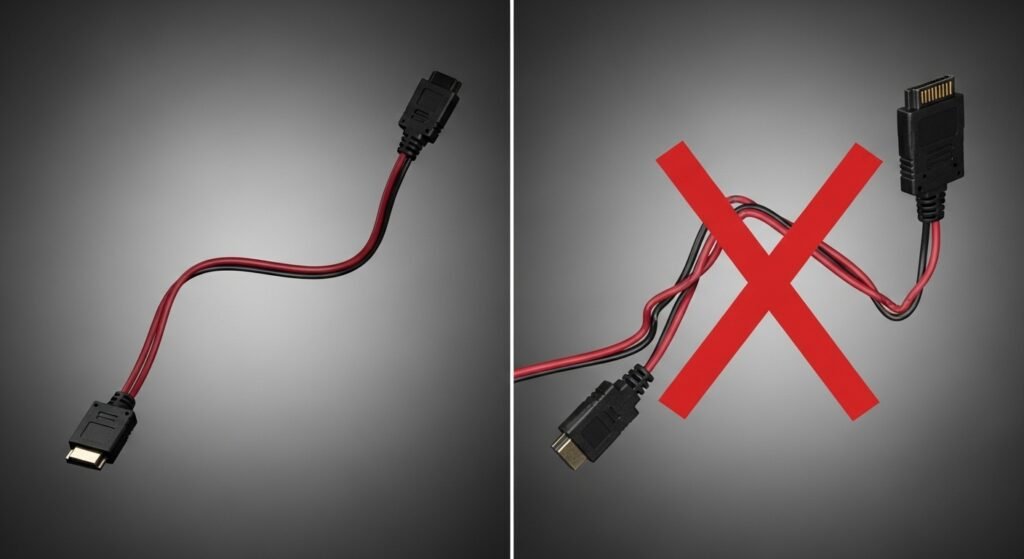
This is the number one cause. SATA cables are notoriously fragile. If a cable is bent at a sharp angle, the internal shielding can crack, allowing electromagnetic interference to scramble the data.
The 90-Degree Rule: Always cross your SATA data cables and power cables at strict 90-degree angles to prevent electrical crosstalk, and never force a cable into a sharp bend near the motherboard port.
2. Cheap Power Splitters and Voltage Drops
This is a massive issue frequently discussed on hardware forums like Level1Techs. Hard drives require stable 5V and 12V power rails. If you are using cheap Molex-to-SATA adapters or splitting one power cable into four different hard drives, the power delivery drops. A momentary voltage drop causes the drive controller to stutter, resulting in a logged CRC error.
3. Oxidized Motherboard SATA Ports
Over years of use, microscopic dust and humidity can cause oxidation on the metal pins inside your motherboard SATA port, interrupting the IDE/SATA interface connection.
4. HBA Card or Backplane Failures
For enterprise users or those running Unraid NAS servers, the error is frequently traced back to a loose SAS breakout cable, a dusty hot-swap backplane, or an overheating Host Bus Adapter (HBA card).
Step-by-Step Fix: How to Stop the Error Count
If your Ultra DMA CRC error rate is actively increasing, you need to intervene. Follow these steps from the easiest hardware fixes to deeper software repairs.
Step 1: Replace and Reroute Cables
Do not just reseat cables; replace them. Purchase a high-quality, shielded SATA III cable. When installing it, plug the hard drive into a different SATA port on your motherboard to rule out a dead port. Ensure your power cables are not heavily daisy-chained.
External Resource: For a deep dive into power delivery and cable management, check out this guide on How to Build a PC by Tom’s Hardware.
Step 2: Run CHKDSK to Fix Soft File Corruption (Windows)
Because this error involves data failing to transfer correctly, your file system may have suffered minor data corruption. You need to ensure your Windows file system is clean.
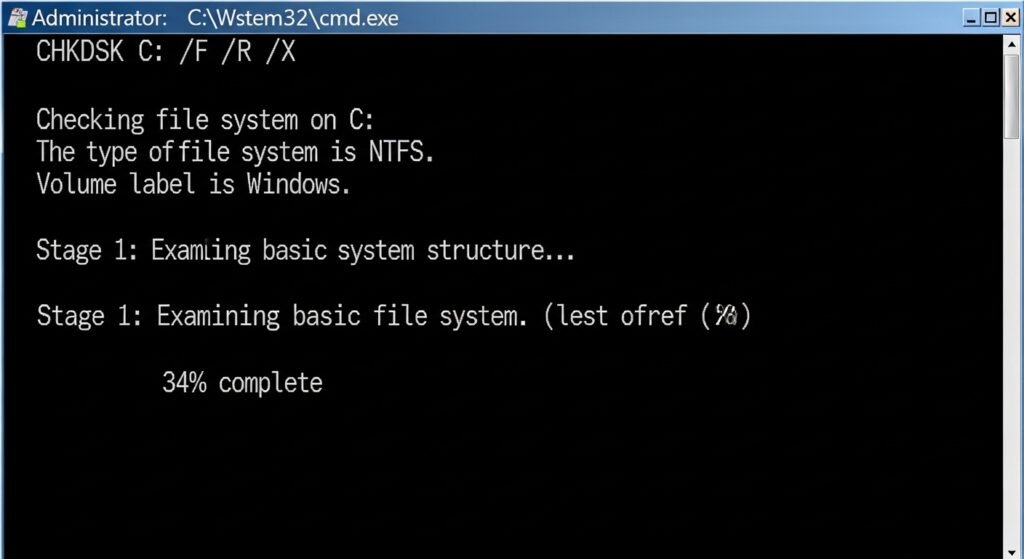
- Open Command Prompt as Administrator in Windows 10 or Windows 11.
- Type chkdsk /f /r and press Enter.
- Restart your PC to allow the tool to scan and repair corrupted files.
External Resource: Read Microsoft’s official documentation on using the CHKDSK command safely.
Step 3: Check Syslog for Hard Resets (Linux & Unraid Users)
If you are running Unraid, the web GUI will often throw a notification that your udma crc error count is increasing. To confirm it is a cable issue and not a dying disk, you must check your system logs.
Open your Unraid terminal and search the syslog for this exact phrase: ata: hard resetting link. If you see this error repeating alongside the drive’s serial number, you have a definitive physical connection issue with your HBA card or backplane.
Step 4: Rebuild the Partition (MiniTool Method)
In rare cases, the CRC errors corrupt the drive’s partition table so severely that Windows refuses to read the drive entirely, showing it as “RAW” in Disk Management. If this happens, you can use third-party software like MiniTool Partition Wizard to rebuild the Master Boot Record (MBR) or format the drive to restore its functionality (Note: Formatting will erase your data, so only do this after a secure data backup).
The Ultimate Question: Does the UDMA CRC Error Count Go Down?
After replacing the cable and running system checks, users inevitably reopen CrystalDiskInfo and panic because the yellow SMART attribute 199 warning is still there.
Fact: The UDMA CRC Error Count raw value will never reset to zero.
S.M.A.R.T. data is a permanent, read-only lifetime log burned into the hard drive’s firmware. This is known as CRC Count persistence. If your drive logged 1,500 errors because of a bad cable, that 1,500 will remain on its record forever.
How to verify your fix was successful:
The only thing that matters is that the raw value is not increasing. Take a screenshot of the raw hexadecimal or decimal number today. Play a demanding video game or transfer a large movie file. Check the software tomorrow. If the number has not changed, your drive is 100% fixed and safe to use.
Best Practices to Protect Your Data
While a 0xC7 error is usually a harmless false positive for mechanical failure, it should serve as a stark reminder that all storage drives eventually fail.
To protect yourself against real disasters (like dying platters or failing flash memory), you should always practice the 3-2-1 backup rule. If you are worried about your drive’s health, use a reliable software tool to perform a disk clone—copying your exact operating system and files to a brand-new drive before the old one gives out completely.
External Resource: For the best backup strategies, review theWorld Backup Day 3-2-1 Rule.
By addressing power delivery, securing your SATA cables, and understanding how to read your hard drive health logs, you can easily conquer the UDMA CRC error and keep your PC running at peak performance.
Go to Sac Biz News for more quality, informative content.