


Seeing the syncing with icloud paused imessage notification at the bottom of your screen can instantly trigger panic. You are expecting an important text, but your Apple ecosystem refuses to update. If you are dealing with a syncing paused iMessage error, you are not alone, and your messages are not lost.
- Why Does My Messages App Say “Syncing with iCloud Paused”?
- 8 Proven Ways to Fix Syncing Paused iMessage
- 1. Cool Down Your Phone and Use a Wired Charger
- 2. Tap “Sync Now” Inside the Messages App
- 3. Force Sync Messages to iCloud via Settings
- 4. Fix a Grayed-Out Sync Button
- 5. Check for Apple ID Mismatches
- 6. Perform a Hard Force Restart
- 7. Clear Your 5GB iCloud Storage Limit
- 8. Sign Out of Apple ID (The Last Resort)
- How to Fix iCloud Sync Paused on Mac
- Data Safety: Will I Lose My iMessages?
- Final Thoughts
To give you the absolute fastest “syncing with icloud paused” error fix, here is the ultimate quick solution: Plug your iPhone into a wired charger, connect to a fast Wi-Fi network, let the phone cool down, and tap the “Sync Now” prompt directly inside your Messages app.
If that did not instantly solve your problem, do not worry. In this comprehensive, easy-to-read guide, we will uncover exactly how to fix syncing with icloud paused messages, including hidden thermal limits, Apple ID mismatches, and advanced data recovery tricks that most tech guides miss.
Why Does My Messages App Say “Syncing with iCloud Paused”?
Before we start changing settings, it is vital to understand why your phone creates this roadblock. When you ask, why does my messages app say syncing with icloud paused?, the answer always comes down to Apple protecting your device’s hardware and data limits.
Apple engineered iOS 17 and iOS 18 to be incredibly protective of your battery health. Uploading gigabytes of photos and texts to the cloud requires massive processing power. Therefore, your iPhone automatically pauses background tasks to protect your phone from dying or overheating.
Here are the factual triggers that cause a sync pause:
- Battery Life: If your battery drops below 20%, your phone enters Low Power Mode, which immediately halts background cloud activity.
- Thermal Throttling (The Overheating Factor): If you are using a wireless MagSafe charger and your phone gets too hot, Apple’s software will pause charging and syncing at 80% to prevent internal hardware damage.
- Cellular Data Limits: Apple prefers to sync large files over stable Wi-Fi. If you are relying on 5G or LTE, the system pauses to save your mobile data limits.
8 Proven Ways to Fix Syncing Paused iMessage
If you are wondering how to fix syncing with icloud paused in messages app, follow these sequential steps. We have ordered them from simple daily fixes to deep software overrides.
1. Cool Down Your Phone and Use a Wired Charger
Many users try to fix this by throwing their phone on a wireless charging pad. However, wireless chargers generate excess heat. If your phone is hot to the touch, the messages syncing with icloud paused error will remain until the device cools down. Remove your phone case, plug it into a traditional wired lightning or USB-C cable, and wait ten minutes.
2. Tap “Sync Now” Inside the Messages App
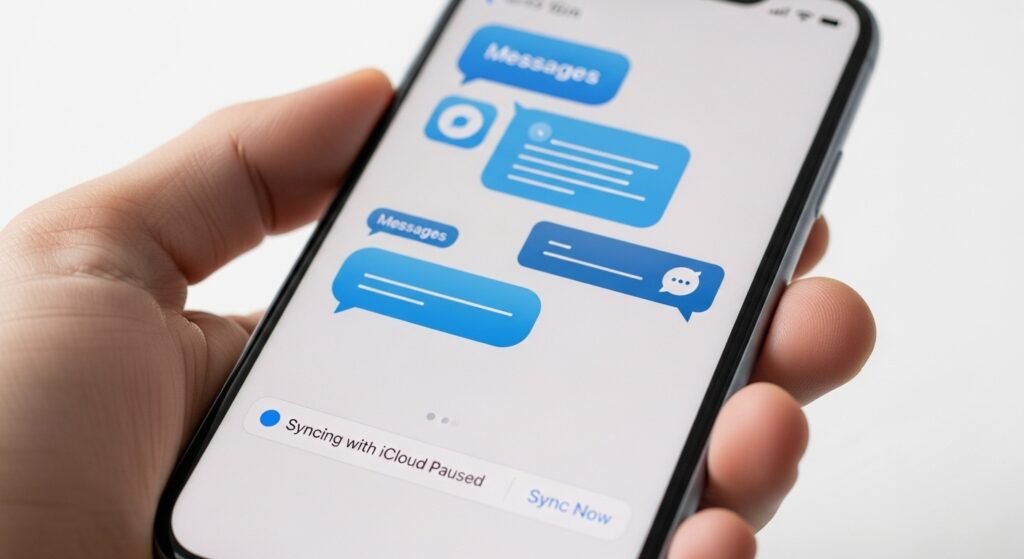
You do not always have to dig through your Settings menu to fix this. Open your actual Messages app and scroll to the very bottom of your most recent texts. You will often see a small status bar that says “Syncing Paused.” Right next to it is a blue hyperlink that says Sync Now. Tapping this sends a direct command to Apple’s servers to push the data through.
3. Force Sync Messages to iCloud via Settings
If the button inside the app is missing, you must force sync messages icloud through your main system preferences.
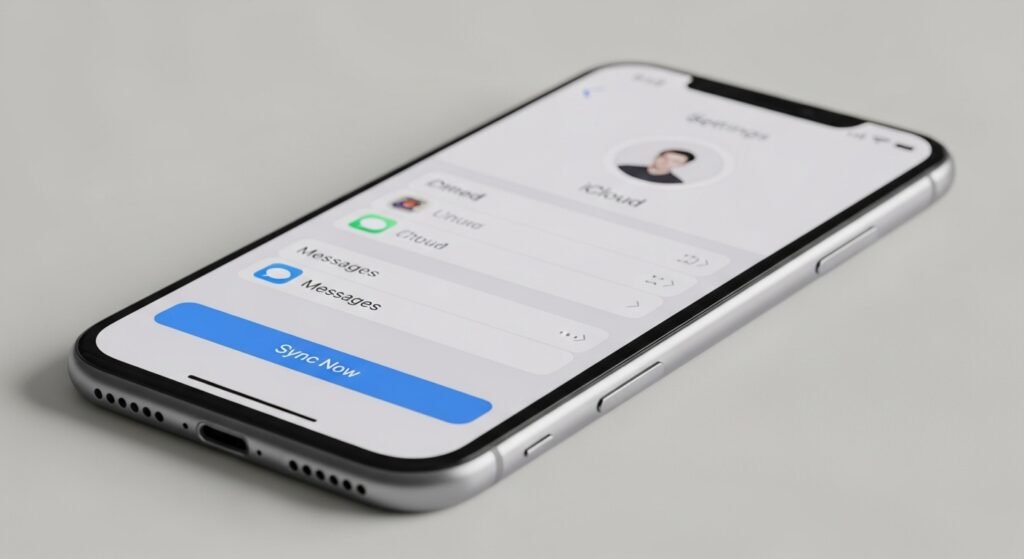
Open your Settings app and tap your Apple ID name at the top. Tap on iCloud. You may need to tap Show All to see your full list of applications. Tap on “Messages in iCloud”, and press the Sync Now option.
4. Fix a Grayed-Out Sync Button
A major frustration is the sync now button grayed out imessage error. You can see the button, but you cannot tap it. This happens when your device fails to make a secure network connection.
First, ensure you are not using a VPN. Navigate to your VPN / Network Settings and toggle the VPN off entirely. VPNs notoriously block Apple’s dedicated iCloud ports. Second, check your Screen Time settings. If you have restricted account changes, Apple locks the iCloud buttons. Turn off Screen Time restrictions temporarily and try the button again.
5. Check for Apple ID Mismatches
If you are dealing with imessage not syncing between mac and iphone, the culprit is often an Apple ID mismatch. You must be signed into the exact same email address on all devices. Open your iPhone Settings and your Mac System Settings to verify that both devices share the identical Apple ID. Even a slight variation (like an @icloud.com vs an @me.com address) will completely break the sync process.
6. Perform a Hard Force Restart
When the software completely freezes, a standard reboot is not enough. You need to perform a Force Restart to clear the device’s temporary cache. Press and quickly release the Volume Up button. Press and quickly release the Volume Down button. Finally, press and hold the side Power button until the screen goes black and the silver Apple logo appears. Once the phone turns back on, resume icloud message sync.
7. Clear Your 5GB iCloud Storage Limit
If your imessage not syncing with icloud, you might simply be out of digital space. Apple provides every user with a free 5GB limit. In 2025, a few group chats containing 4K videos will fill that space immediately.
Navigate to your iPhone Storage and use the “Top Conversations” feature to delete massive video attachments. If you cannot delete anything, you must upgrade your storage.
| Apple iCloud Tier | Monthly Cost | Best Use Case |
| 5GB | Free | Absolute basic texting. No photo backups. |
| 50GB | $0.99 | Casual users who share photos. |
| 200GB | $2.99 | Families and heavy group chat users. |
| 2TB | $9.99 | Power users backing up Macs and iPhones. |
8. Sign Out of Apple ID (The Last Resort)
If your imessage icloud sync stuck error persists, your final software fix is to sign out of your Apple ID entirely. Go to Settings, tap your name, scroll to the bottom, and tap Sign Out. You will need your password and 2FA (Two-Factor Authentication) code to sign back in. This forces your phone to build a brand new connection to Apple’s servers.
How to Fix iCloud Sync Paused on Mac
If you are sitting at your computer and realize your icloud sync paused mac error is blocking your workflow, the fix requires macOS-specific steps.
Whether you are running macOS Sonoma or macOS Sequoia, first try Force Quitting the app. Click the Apple logo in the top left corner, select Force Quit, and close Messages.
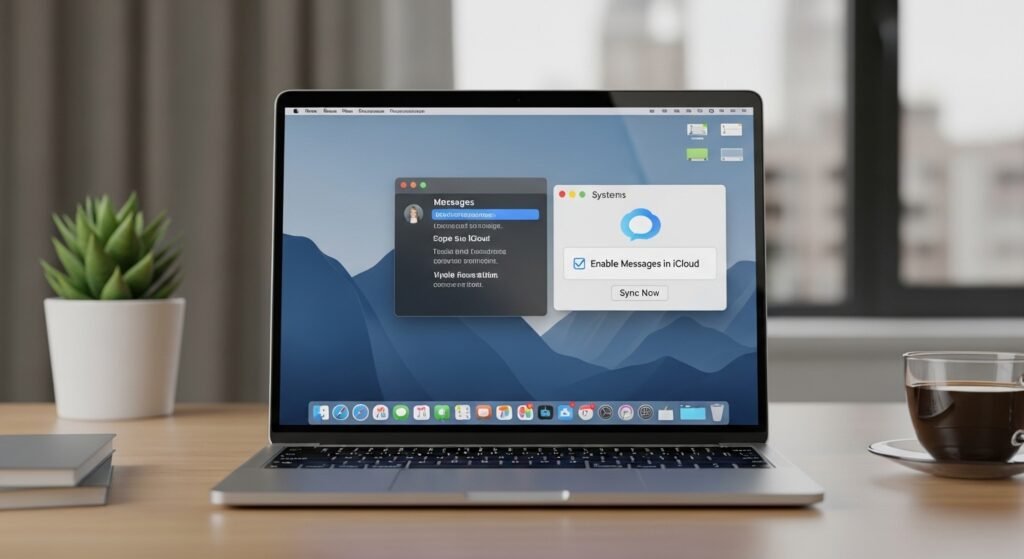
Reopen the app, click “Messages” in the top menu bar, and select Settings. Navigate to the iMessage tab. Ensure “Enable Messages in iCloud” is checked. If it is checked, click the Sync Now button directly next to it. Ensure your Mac is plugged into power, as Macs will also pause background uploads on battery power to conserve energy.
Data Safety: Will I Lose My iMessages?
When tech fails, users immediately ask: will I lose my imessages if syncing is paused?
The absolute truth is: No, your messages are safe.
When you see a paused notification, your texts are safely stored locally on your device’s physical hard drive. The error simply means a duplicate backup copy has not yet uploaded to the cloud. Even if you accidentally delete a thread, Apple keeps it in a “Recently Deleted” folder for 30 Days.
Important Warning About Toggling iMessage:
Many tech guides tell you to toggle the iMessage button off and on in settings. Do this with caution. Turning off iMessage can cause recent texts to split into separate SMS threads. Before doing any massive software resets, plug your iPhone into your Mac or PC and create a local backup using Finder or iTunes. This guarantees zero data loss.
Final Thoughts
Fixing a paused iMessage sync does not require a trip to the Apple Store. By understanding how thermal throttling works, using wired chargers instead of MagSafe, disabling VPNs, and knowing exactly where to find the manual sync buttons, you can easily restore your digital conversations. Always ensure you have a strong Wi-Fi connection and a cool, fully charged battery, and Apple’s background magic will handle the rest.
Go to Sac Biz News for more quality, informative content.