



How to deselect WorldEdit is a frequent search for Minecraft players who get stuck with a lingering selection or annoying glowing borders after using the wooden axe wand.
- What Is a WorldEdit Selection?
- How to Deselect WorldEdit – The Quickest Method
- How to Remove WorldEdit Selection Outline and Particles
- Alternative Ways to Clear Selection in WorldEdit
- Advanced Selection Techniques You Should Know
- Troubleshooting When //desel Is Not Working
- Pro Tips and Best Practices
- WorldEdit Deselect Across Different Platforms
- Frequently Asked Questions (FAQ)
- Conclusion
Whether you made an accidental massive selection or simply want to clear your WorldEdit selection to start fresh, this guide shows you the fastest and most reliable methods. You’ll learn the official //desel command, how to remove WorldEdit selection outline, troubleshooting tips, and pro techniques that many tutorials miss.
What Is a WorldEdit Selection?
In WorldEdit, a selection (also called a region) marks the 3D area where your editing commands will take effect. Most players create a cuboid selection using the default wooden axe wand — left-click for pos1 and right-click for pos2.
You often need to deselect WorldEdit because:
- The glowing selection outline stays visible and becomes distracting.
- You want to make a new selection without interference.
- Large selections can cause lag or server crashes.
Important Note: //desel only clears the selection boundaries. It does not undo changes — use //undo for that.
How to Deselect WorldEdit – The Quickest Method
The fastest way to clear WorldEdit selection is with this simple command:
“`markdown
//desel
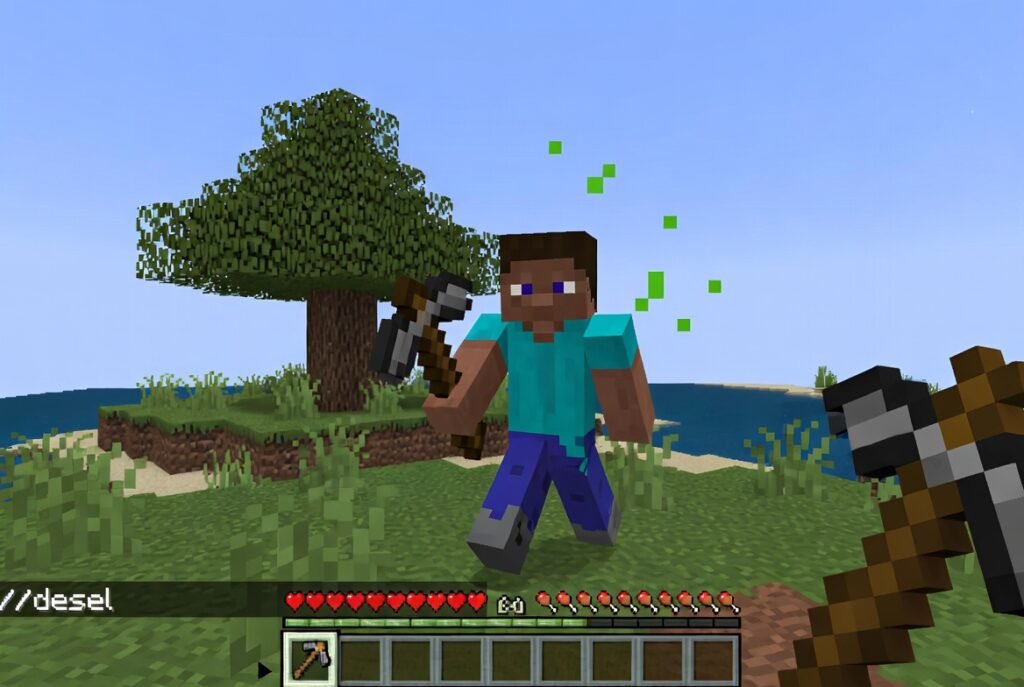
How to use it:
- Open the chat in Minecraft.
- Type //desel and press Enter.
- Your current region selection will be cleared instantly.
In many versions, typing //sel alone also works as a quick shortcut to deselect.
This method is recommended in the official WorldEdit documentation and is the standard solution used by thousands of players.
How to Remove WorldEdit Selection Outline and Particles
One of the most frustrating issues is when the WorldEdit selection outline or particles refuse to disappear even after running //desel.
Here’s how to remove WorldEdit selection outline effectively:
- Run //desel a second time.
- Use //drawsel to toggle server-side outlines (limited to 48x48x48 blocks in WorldEdit 7.4; older versions were limited to 32x32x32).
- Switch selection mode with //sel cuboid.
- Restart your Minecraft client.
- Install a WorldEdit CUI mod for much better client-side visualization and cleaner deselection.
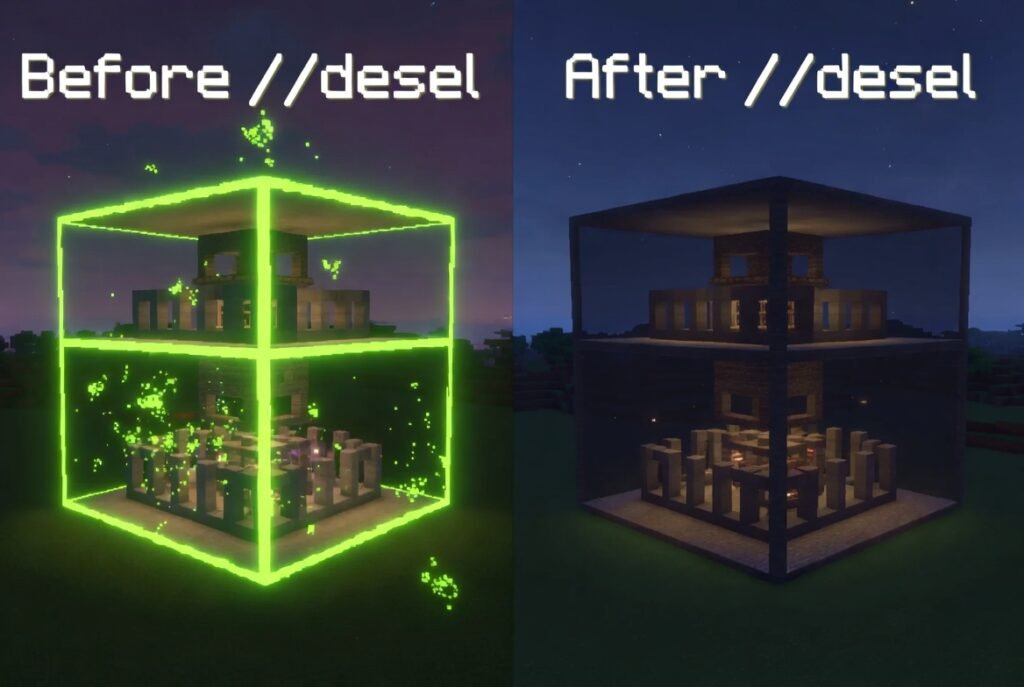
Pro Tip: Go to Minecraft Controls → Scroll to WorldEdit section and bind a hotkey to “Unselect”. This makes how to deselect WorldEdit feel instant during building.
Alternative Ways to Clear Selection in WorldEdit
Besides //desel, you can try these effective methods:
- Change selection style: //sel cuboid, //sel extend, //sel poly, //sel ellipsoid, //sel sphere, //sel cyl, or //sel convex. Use //sel -d to return to default cuboid mode.
- Toggle the wand: //toggleeditwand.
- Unbind current tool: /tool none.
For Bedrock Edition users, replace // with ; (example: ;desel).
Advanced Selection Techniques You Should Know
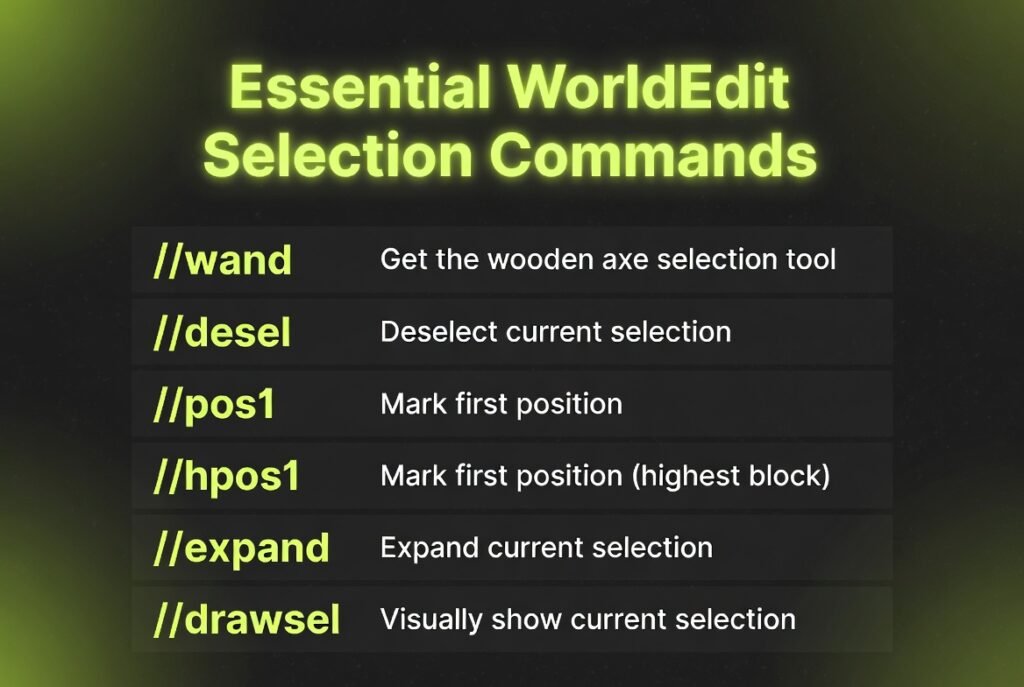
To better understand deselection, here’s a quick reference of important selection commands:
- //wand — Get the selection tool.
- //pos1 / //pos2 — Set positions at your feet.
- //hpos1 / //hpos2 — Set positions at the block you’re looking at (great for large or distant selections).
- //chunk — Selects the entire 16x16x256 chunk. Use //chunk -s to select intersecting chunks.
- //expand, //contract, //outset -v/-h, //inset — Modify selection size.
- //trim [mask] — Shrinks selection to the smallest area containing non-air blocks.
| Command | Description | Best Use Case |
|---|---|---|
| //desel | Clear current selection | Daily building workflow |
| //drawsel | Toggle server outline (48x48x48 limit) | Small precise work |
| //hpos1 / //hpos2 | Select from distance | Large structures |
| //toggleeditwand | Enable/disable wand | Prevent accidental selections |
| //sel cuboid | Reset to default mode | Fix visual glitches |
Troubleshooting When //desel Is Not Working
If //desel doesn’t seem to work, try these fixes:
- Check permissions (worldedit.region.deselect).
- Ensure you’re using WorldEdit 7.4 or newer (or FastAsyncWorldEdit).
- Persistent outlines are often client-side — a WorldEdit CUI mod or client restart usually solves it.
- Very large selections may trigger IncompleteRegionException. Always deselect before creating huge regions.
- On Spigot/Paper servers, plugin conflicts can occur. Test in a fresh creative world first.
Pro Tips and Best Practices
- Always run //desel immediately after finishing an edit.
- Use keybinds for faster workflow.
- Practice in singleplayer creative mode before using on multiplayer servers.
- Combine //desel with //size to check your selection volume before editing.
External Resource: For the most up-to-date official selection guide, visit the WorldEdit Documentation. For the best visualization mod, check WorldEdit CUI on Modrinth.
WorldEdit Deselect Across Different Platforms
- Java Edition (Spigot, Paper, Fabric): //desel works perfectly. Use WorldEdit 7.4+ for stability.
- FastAsyncWorldEdit (FAWE): Same commands with improved performance.
- Bedrock Edition: Use ;desel and ;drawsel.
- Minecraft 1.20 / 1.21+: Commands remain consistent, but keep your WorldEdit version updated.
Frequently Asked Questions (FAQ)
What is the deselect command in WorldEdit? The main command is //desel (short for deselect).
How do I remove WorldEdit selection outline that won’t go away? Try //desel, then //sel cuboid, toggle //drawsel, or install a CUI mod. Binding a hotkey also helps.
Does //desel work in Bedrock? Yes — use ;desel instead.
What’s the difference between //desel and //undo? //desel clears the selection area. //undo reverts actual block changes.
How to clear another player’s WorldEdit selection? Regular players can’t. Server admins usually need custom plugins or console commands.
Conclusion
Mastering how to deselect WorldEdit with the //desel command will save you hours of frustration. Combine it with good habits like using keybinds and installing a WorldEdit CUI mod, and your building experience will become much smoother.
Now go try //desel in your world! Once you get comfortable with clearing selections, explore more advanced WorldEdit features like expanding, contracting, and trimming regions.
Go to Sac Biz News for more quality, informative content.