


USA staffing has encountered an error. If you are staring at this frustrating message on your screen, take a deep breath. You are not alone, and your application data is likely perfectly safe. Navigating the federal hiring process can feel like running a marathon, and getting hit with a system crash right before the finish line is a uniquely stressful experience.
- 7 Quick Fixes for USA Staffing Errors (Try These First)
- 1. Refresh Your Session and Log Back In
- 2. Open Incognito Mode / Private Browsing
- 3. Clear Your Browser Cache and Cookies
- 4. Switch to a Supported Browser
- 5. Verify Your USAJOBS Account Link (The Mismatch Fix)
- 6. Turn Off Ad-Blockers and Check IP Status
- 7. Check Your Document File Size and Format
- Summary Table: Quick Fix Action Plan
- Decoding Specific USA Staffing Error Codes (14, 15, and 911)
- What is Error Code 14? (Password-Protected Documents)
- What is Error Code 15? (Invalid PDF Portfolios)
- What is Error 911? (Profile or SSN Mismatch)
- The 5MB Document Upload Limit Explained
- The HR & Agency Perspective: Why USA Staffing Keeps Crashing
- The Domain Handoff (usajobs.gov vs usastaffing.gov)
- Managed Service Providers (MSP) and Contingent Workforces
- Heavy Traffic and Broken “Skip Content” Links
- Advanced Technical Solutions (If the Basics Fail)
- Deadline Approaching? What to Do If the System Is Completely Down
- 1. Document the System Outage (Screenshots)
- 2. Contact Federal Agency HR Directly
- 3. Use the Correct Official Support URL
- Case Study: The Midnight Deadline Surge
- Frequently Asked Questions (FAQs)
Whether you are an applicant applying for a dream job on the USAJOBS portal, a new hire finalizing new hire onboarding paperwork, or an HR specialist managing an Applicant Tracking System (ATS), dealing with this glitch is incredibly common. Federal systems handle massive amounts of sensitive data daily, connecting agency HR portals with identity management tools. Occasionally, the servers simply time out.
The good news? Most of these glitches can be resolved in under 2 minutes or 5 minutes max. In this comprehensive guide, we will walk you through exactly how to fix USA Staffing errors, explain why the system keeps breaking, provide specific troubleshooting steps for USAJOBS account mismatches, and give you a step-by-step emergency plan if your job announcement deadline is closing tonight.
7 Quick Fixes for USA Staffing Errors (Try These First)
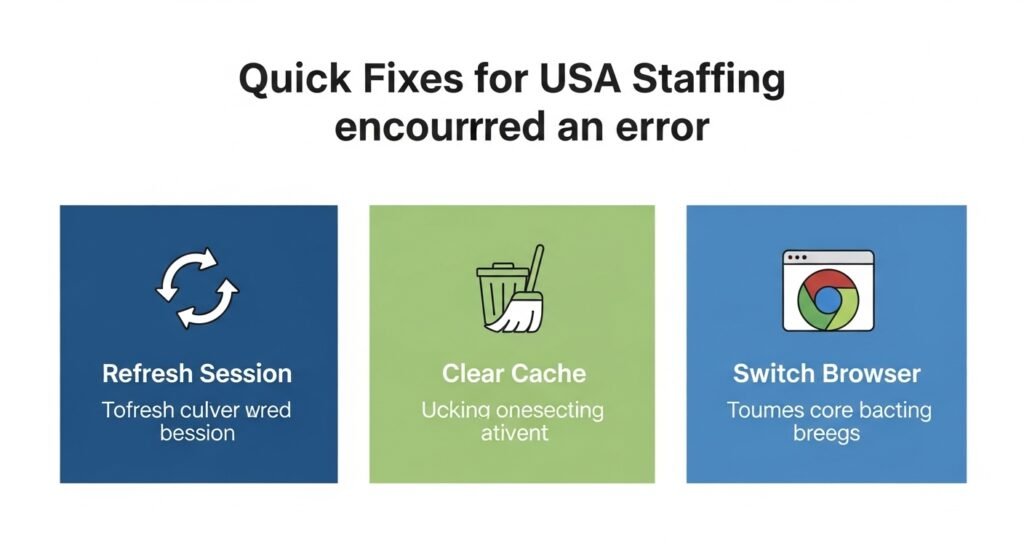
When you are desperately searching for quick fixes for USA Staffing encountered an error, you do not have time to read a technical manual. You need USA Staffing fast solutions. If USAJOBS and USA Staffing are not working, try these actionable steps to resolve the USA Staffing glitch immediately.
1. Refresh Your Session and Log Back In
The most common culprit for this error is a session timeout or an expired session. For security reasons, the Office of Personnel Management (OPM) automatically logs users out if they are idle for too long. Do not just hit the refresh button on your browser. Instead, log out of USAJOBS completely, close the window, open a new one, and log back in.
2. Open Incognito Mode / Private Browsing
If a standard refresh does not work, jump straight into Incognito Mode (Chrome) or Private Browsing (Safari/Firefox). This completely bypasses your browser’s saved history and corrupted cookies. If you can log in via an incognito window, you instantly know the problem is tied to your local browser data.
3. Clear Your Browser Cache and Cookies
If you are stuck in an endless USA Staffing login loop, you likely have a corrupted browser cache. When federal websites update their security certificates, your old browser cookies can conflict with the new system. Go to your browser settings, clear your cache and cookies for “All Time,” and restart the browser.
4. Switch to a Supported Browser
Federal systems are built with specific browser compatibility in mind. The USA Staffing system is highly optimized for Google Chrome, Mozilla Firefox, and Microsoft Edge. If you are using an unsupported browser like Internet Explorer, the system will immediately fail.
5. Verify Your USAJOBS Account Link (The Mismatch Fix)
One of the most overlooked causes of a login error is using the wrong USAJOBS account[1]. If you recently changed your USAJOBS email address or created a new account after accepting a job offer, the USA Staffing Candidate Portal will reject your login because the credentials do not match your original onboarding record.
The Fix: You must contact the USAJOBS Help Center to restore your original account, and then ask your hiring agency’s HR office to clear the stored account from your USA Staffing record.
6. Turn Off Ad-Blockers and Check IP Status
Strict JavaScript settings, ad-blockers, or pop-up blockers can accidentally block the system from opening the application questionnaire. Disable your extensions temporarily. In rare cases, repeated errors may stem from flagged IP addresses or a suspended USAJOBS account due to multiple failed login attempts. If you suspect a cybersecurity block, you must contact official support.
7. Check Your Document File Size and Format
Ensure your documents are in accepted file formats like PDF, DOCX, JPEG, PNG, or RTF. Furthermore, remove any special characters from the file name. Renaming files using letters and numbers only prevents system parsing errors that trigger crashes.
Summary Table: Quick Fix Action Plan
| Troubleshooting Step | Time Required | Effectiveness | Best For… |
| Incognito Mode | 1 Minute | High | Bypassing corrupted cookies instantly. |
| Clear Cache | 3 Minutes | Very High | Fixing the endless login loop. |
| Account Sync Fix | 10 Minutes | High | Resolving USAJOBS email mismatches. |
| Check File Size | 5 Minutes | High | Stopping crashes during document uploads. |
Decoding Specific USA Staffing Error Codes (14, 15, and 911)
Sometimes, the system gives you a specific numerical code alongside the standard “encountered an error” message. Understanding these codes is the secret to advanced USA Staffing troubleshooting steps.
What is Error Code 14? (Password-Protected Documents)
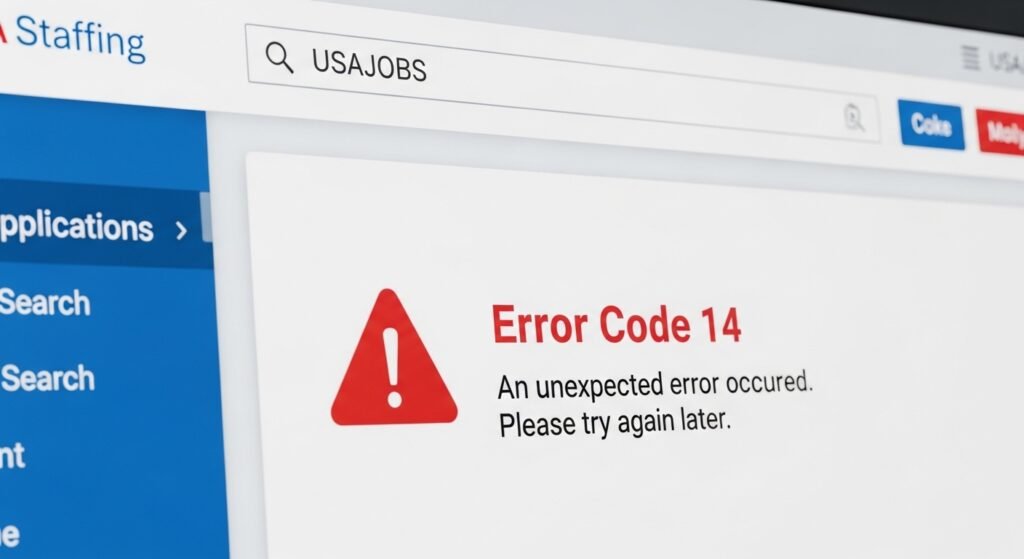
If you see Error Code 14, it means you are trying to upload a password-protected or encrypted document. The federal system must be able to scan your documents for viruses.
The Fix: Open your document, select “Print,” and choose Adobe PDF or Win2PDF to “print to PDF”[1]. This flattens the file and strips away the password protection, allowing for a clean upload.
What is Error Code 15? (Invalid PDF Portfolios)
Error Code 15 is the dreaded PDF upload error related to “Portfolios.” A PDF Portfolio is a single file that contains multiple separate PDFs bundled together. USA Staffing cannot process these. You must extract the documents and upload them individually.
What is Error 911? (Profile or SSN Mismatch)
Error 911 usually occurs on the HR side or during onboarding. It triggers during an SSN validation failure on the Biographic Information Questionnaire or an eOPF (Electronic Official Personnel Folder) mismatch[1].
The Fix: The new hire must log in and correct their SSN. If the form is locked, the HR specialist must cancel the eOPF transmission and return the forms for correction.
The 5MB Document Upload Limit Explained
USA Staffing has a hard 5MB limit per document. If your file is 5.1MB, the system will not politely tell you it is too big; it will simply crash. Always compress your PDFs before applying.
The HR & Agency Perspective: Why USA Staffing Keeps Crashing
If you are wondering why USA Staffing keeps encountering errors, you have to look behind the curtain at how federal recruitment infrastructure actually works.
The Domain Handoff (usajobs.gov vs usastaffing.gov)
USAJOBS is the storefront; USA Staffing is the warehouse. When you click “Apply” on a USAJOBS vacancy announcement, your data is transferred via API connections to usastaffing.gov. If there is even a millisecond of packet loss during that system integration, the user gets an error.
Managed Service Providers (MSP) and Contingent Workforces
For agencies handling high-volume recruitment—like Homeland Security or Immigration Enforcement—the stakes are incredibly high[2]. These agencies often rely on Managed Service Provider (MSP) teams to handle contingent employees or bridge payroll solutions. When USA Staffing errors spike, it disrupts these MSP workflows, delaying background checks and security clearances for critical frontline operations.Expert Quote: “A recurring ‘USA Staffing has encountered an error’ notification can reveal deeper software weaknesses that affect multiple agencies at once. If ignored, departments miss critical hiring windows, and the perception of reliability inside the federal government takes a direct hit.” — Federal Staffing Analyst[2]
Heavy Traffic and Broken “Skip Content” Links
Federal hiring surges cause immense server strain. Furthermore, users often get frustrated by broken navigation. A common issue arises when users click “skip main navigation elements” or “skip content” links built into the portal for accessibility; if these API hooks fail under heavy load, the session collapses and throws an error[2].
Advanced Technical Solutions (If the Basics Fail)
If you have tried the quick fixes and are still looking for step-by-step solutions for USA Staffing error loops, try these advanced IT-level fixes.
How to Clear Your DNS Cache (Flush DNS)
Sometimes, your computer holds onto outdated routing information for federal websites. Flushing your DNS forces your computer to establish a brand-new connection to the server.
- For Windows: Open Command Prompt, type ipconfig /flushdns, and hit Enter.
- For Mac: Open Terminal, type sudo dscacheutil -flushcache; sudo killall -HUP mDNSResponder, and hit Return.
Check the Dashboard Instead of Assuming Failure
If you receive an error right as you hit “Submit,” do not immediately panic and try to submit the application five more times (which can cause system flags). Log back into USAJOBS and check your dashboard to confirm submission status[3]. Often, the application went through successfully right before the session timed out.
Deadline Approaching? What to Do If the System Is Completely Down
It is 11:00 PM, the job closes at midnight, and you are desperately Googling what to do if USA Staffing error makes you miss a deadline. Here is your emergency action plan.
1. Document the System Outage (Screenshots)
Take a full-screen screenshot showing the error message. Crucially, ensure the date and time on your computer’s taskbar are clearly visible.
2. Contact Federal Agency HR Directly
Scroll to the very bottom of the original job announcement to find the Agency contact information. Immediately draft an email to that address, attaching your screenshot and your resume. While they cannot accept emailed applications as official entries, this creates a timestamped paper trail proving you attempted to apply before the deadline.
3. Use the Correct Official Support URL
Using the right support channel is vital. Do not use outdated bookmarks, as they will lead to 404 redirects. Use the specific portal for your user type[1]:
- For New Hires (Onboarding Errors): nhsupport.usastaffing.gov
- For Application Submission Errors: appsupport.usastaffing.gov
- For HR/Application Managers: support-usastaffing.opm.gov
- For Login Issues: Use the Help Desk Ticket / VAN Help Desk Chatbot located directly on the login page for the fastest resolution.
Case Study: The Midnight Deadline Surge
In early 2025, a federal agency posted a remote analyst position capped at 500 applicants. Within hours, 4,000 people logged on to apply. The sheer volume of traffic overwhelmed the API connection between USAJOBS and the agency HR portal. Applicants who waited until the final hour were met with continuous error screens, proving that applying early is the ultimate technical workaround.
The Golden Rule of Federal Applications:
Never apply on the day the announcement closes. The recommended timeframe to submit your application is 3–5 days before the deadline. Save your drafts frequently after each section to prevent data loss.
Frequently Asked Questions (FAQs)
Why does USA Staffing keep timing out?
This usually occurs due to inactivity. The system logs users out automatically for security reasons. Saving progress frequently and avoiding long idle periods can help prevent timeouts.
Will I get a deadline extension if USAJOBS is down?
If there is a massive, documented, system-wide failure on the OPM servers, agencies will often extend the deadline. However, if the error is local to your computer, no extension will be granted. Always check OPM Twitter / X Alerts for official outage announcements.
Is the error related to my USAJOBS account mismatch?
Yes. If you changed your email or deleted/recreated your USAJOBS account after accepting a job offer, the credentials will not sync. You must contact the USAJOBS Help Center to restore the original account.
How long does OPM system maintenance usually last?
Scheduled system maintenance typically lasts between 1 to 4 hours. It is almost exclusively scheduled for late Saturday nights or early Sunday mornings to minimize the impact on applicants.
Does this error mean my application was not submitted?
Not always. Applicants should log back in and check their applicant dashboard to confirm their submission status before assuming the process failed.
By following this guide, you now know exactly how to fix USA Staffing has encountered an error. Remember to clear your cache, compress your files, verify your USAJOBS account sync, and avoid the midnight rush. With these tools, you can navigate the federal hiring process with confidence and ease.
Go to Sac Biz News for more quality, informative content